
As an Amazon Associate, I earn from qualifying purchases. This means I may earn a commission if you purchase through links on this page — at no extra cost to you.
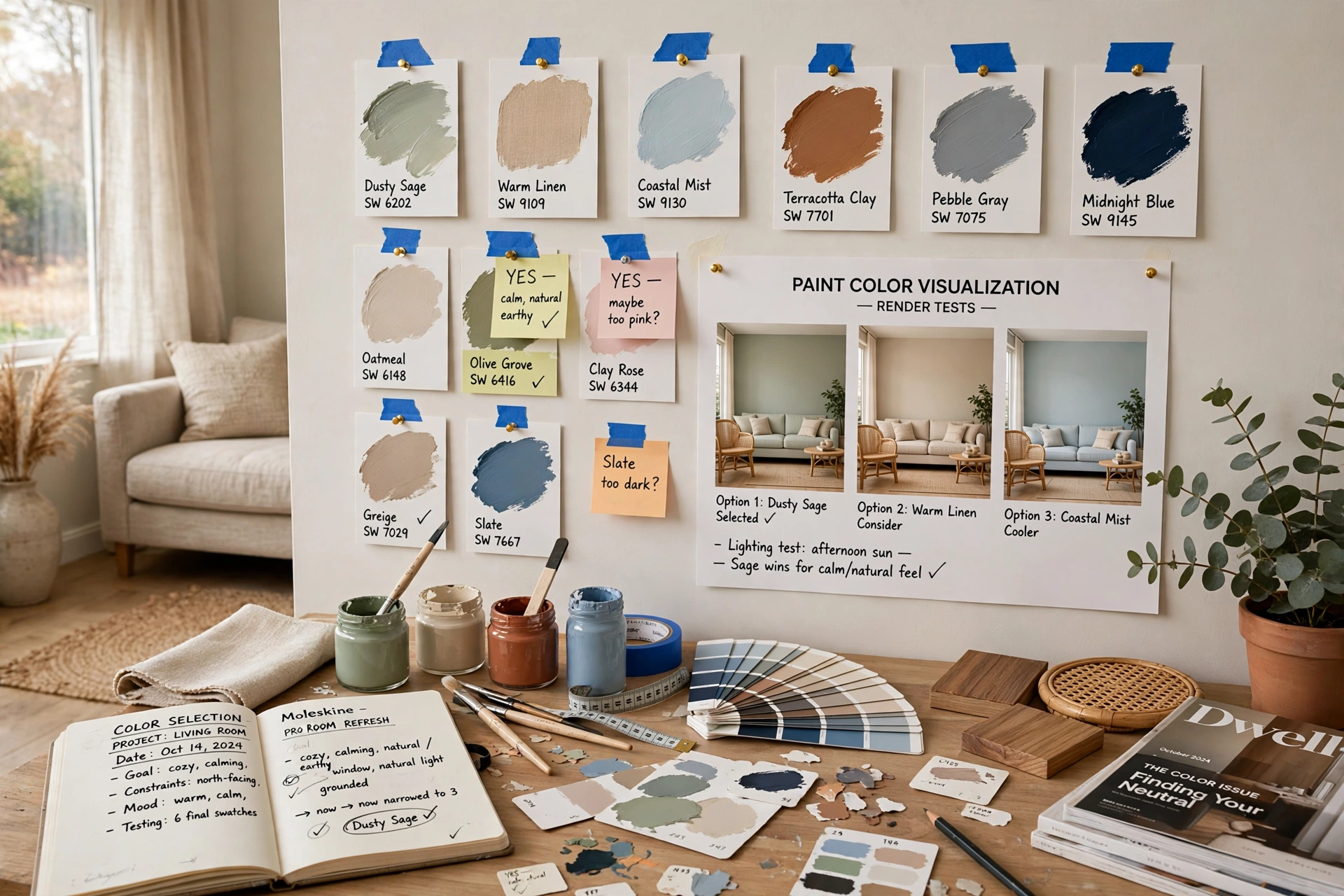
Choosing paint colors from tiny swatches is stressful because you can’t truly visualize the result. A paint color visualizer lets you upload a photo of your room and digitally “paint” the walls different colors — giving you a much better sense of how shades will look at scale. Here’s how to use these free tools effectively and which ones are worth your time.
How Visualizers Work
Most tools let you upload a photo of your room, then tap walls to fill them with different paint colors. The software detects wall boundaries (some better than others) and applies the color with realistic shading. It’s not perfect — screen colors differ from real paint — but it’s excellent for narrowing options and comparing shades side by side.
Best Free Visualizer Tools
Sherwin-Williams ColorSnap
Upload your photo or use their sample rooms. Large color library, decent wall detection. Available as app and web. Best for: Sherwin-Williams colors specifically.
Benjamin Moore Personal Color Viewer
Similar functionality with BM’s palette. Good for testing their complex neutrals. Best for: Benjamin Moore colors.
Behr Color Studio
Clean interface, works with Behr’s extensive palette. Includes inspirational room photos. Best for: Budget-conscious painters using Behr.
General Room Visualizers
Some independent sites let you test multiple brands. Quality varies — use these for general direction, not final decisions.
How to Get the Best Results
Use a straight-on photo taken in natural daylight. Angled or dark photos confuse the wall-detection algorithm.
Test 5-6 colors minimum. The point is comparison — seeing shades side by side reveals undertones you’d miss individually.
Screenshot your favorites. Save the visualizations to compare later or share with a partner.
Don’t skip real swatches. Use the visualizer to narrow to 3 finalists, then test with physical paint. Screens lie; paint doesn’t.
Limitations to Know
Visualizers can’t show: how color changes throughout the day, texture and sheen accurately, or how the color interacts with your specific lighting. They’re a starting tool, not a finishing tool. Always confirm with real paint samples before buying gallons.
Pro Tip: The Side-by-Side Method
Visualize the same room in your top 3 colors and view the screenshots together. This comparison often makes the winner obvious in a way that individual swatches never could. Pay attention to which one makes the room feel the way you want — not just which looks prettiest in isolation.
How to Take a Room Photo That Gives Accurate Results
A visualizer is only as good as the photo you feed it, and most disappointing results trace back to a bad photo, not a bad tool. Shoot in daylight with the room’s lights off — mixed lighting (warm lamps plus cool daylight) confuses the wall-detection algorithms and skews how colors render. Stand in the doorway or the far corner to capture as much wall as possible, holding the phone at chest height and keeping it level; tilted photos distort the wall boundaries the software tries to detect.
Declutter before shooting. The visualizer needs to see wall edges clearly, so temporarily move anything leaning against the walls and pull furniture a few inches out if it’s hugging the baseboards. Take the photo straight-on to the main wall rather than at an angle — the flatter the perspective, the more accurately the color fills. And use your phone’s regular lens, not the wide-angle: wide-angle shots bow the walls at the edges, which makes the digital paint job look warped. One good photo beats five hasty ones.
Visualizer Limitations (and How to Work Around Them)
Visualizers are excellent for narrowing choices and comparing shades, but they have real limits you should understand. Screen vs. reality: Your phone or monitor displays color in RGB light; paint is pigment on a wall. No screen can show you exactly how a paint color will look — screens are backlit and tend to make colors look brighter and cleaner than they are. Use the visualizer to eliminate options and shortlist finalists, never to make the final call.
Lighting simulation is approximate: Most visualizers don’t account for your room’s orientation, window size, or bulb color temperature. A color that looks perfect in the app’s generic lighting can behave differently under your warm LEDs. Texture and finish are faked: The app applies flat digital color; it can’t show you the difference between eggshell and satin, or how the color interacts with your wall’s texture. Undertones get lost: Subtle undertones — the difference between a clean gray and a green-gray — often don’t survive digital rendering. Two colors that look identical in the app can look clearly different on the wall. The workaround for all of these: treat the visualizer as step one (narrowing 20 options to 3), and real painted samples as step two (picking the winner).
What to Do After the Visualizer: Sampling Done Right
Once the visualizer has narrowed your list to two or three finalists, it’s time for real samples — this is where the actual decision happens. Buy sample pots (or peel-and-stick samples) of each finalist and paint large swatches: at least 2 by 2 feet, on at least two walls, or on movable boards you can test in different spots. Small dabs next to each other are useless — colors influence each other when they’re touching, so leave white space between samples.
Live with the samples for a minimum of two full days. Look at them in morning light, afternoon light, and at night under your actual bulbs. Notice how each color behaves next to your furniture, flooring, and trim — a wall color never exists in isolation. Pay special attention to the color at the times you actually use the room: a living room color matters most in evening lamplight; a bedroom color matters most in morning and nighttime light. If you’re torn between two, paint each on a large board and move them around the room for a day — the winner usually becomes obvious. Yes, this process takes a few days. It’s still faster and cheaper than repainting a room you hate.
Common Visualizer Mistakes to Avoid
Testing only one color at a time in isolation. The power of a visualizer is comparison — load your top three contenders and flip between them on the same photo. Differences that are invisible on separate swatches become obvious side by side. Using the app’s stock room photos instead of your room. Stock photos are useful for inspiration, but your room’s light, proportions, and furnishings change everything. Always upload your own photo for decision-making. Forgetting the ceiling and trim. Most people visualize only the walls, then discover the new wall color clashes with the existing ceiling white or trim. Include trim in your visualization when the tool allows it, or at least hold your trim color next to your finalists.
Skipping the sample step because the app looked “close enough.” This is the expensive mistake. The visualizer is a narrowing tool, not a deciding tool. Every professional painter will tell you: the app gets you to three options, but only paint on the wall picks the winner. The few dollars and days that proper sampling costs are trivial compared to repainting an entire room.
Beyond Walls: Visualizing Trim, Doors, and Accents
Most people point the visualizer at their walls and stop there — but the best use of these tools is testing the whole composition. Many visualizers let you paint trim, interior doors, and even ceilings separately. This is where you discover that your dream wall color clashes with your existing trim, or that painting the interior doors the same color as the walls (color drenching) looks dramatically better than white doors you hadn’t considered changing.
Test accent walls deliberately: visualize the same room with all four walls in your color versus three walls plus one deeper accent. The comparison often settles the accent-wall debate instantly — some colors sing as accents and overwhelm as full rooms, and the visualizer shows you which before you buy a gallon. Also test the “boring” elements people forget: the hallway visible through the doorway, the ceiling (a slightly darker ceiling can make a room feel intimate; most people never consider it), and built-in shelving or wainscoting. A room’s color is a system, and the visualizer is at its best when you use it to test the system, not just one surface.
Using Visualizers for Whole-House Color Flow
The advanced move is using visualizers to plan color flow between rooms — how colors relate as you move through the house. Photograph the sight lines: stand in the living room and shoot through the doorway into the hallway, then visualize both spaces together. Colors that look great in isolation can clash across a doorway; colors with a shared undertone flow beautifully even when they’re different hues.
A practical method: pick a whole-house neutral for hallways and connecting spaces (it doesn’t have to be boring — a warm greige or soft white with character), then give individual rooms their own personality colors that share the neutral’s undertone. Visualize the transitions, not just the rooms — the three feet of hallway visible from the living room sofa matters more than the far corner of the bedroom nobody sees. Open floor plans need this most: when the kitchen, dining, and living areas share sight lines, their colors must converse. The visualizer lets you audition the conversation before committing the whole open space to a palette that argues with itself.
🛒 Shop This Look:
🛒 Shop This Look:
🛒 Shop This Look: